Sensitivity
Hidden photos on iPhone
How to Hide Photos on iPhone and Lock the Hidden Album
You can hide photos using Apple Photos without installing another app. Touch and hold a picture, choose Hide and confirm. The Hidden album keeps it out of ordinary library browsing; its authentication setting controls who can open it.
Hide a photo without deleting it
Open Photos and touch and hold the image or video you want to keep private. Choose Hide and confirm the selection. Apple’s Hidden album guide describes the current controls.
This moves the item out of the main library view, other albums and the Photos widget. It stays in your library. Use hiding when you want to keep a picture but do not want it to appear during casual browsing; deletion is a different decision.
Where are hidden photos on iPhone?
In Photos, open Collections and look under Utilities for Hidden. Open the album and authenticate when asked. If you cannot find it, check Settings → Apps → Photos and turn on Show Hidden Album.
That setting controls whether the album is listed. Turning it off does not delete its contents. Re-enable it when you need to review them.
Check the lock and protect your passcode
Since iOS 16, Hidden and Recently Deleted are locked by default. In the Photos settings, keep the available Face ID, Touch ID or passcode option enabled. See Apple’s guide to hiding and deleting media.
The device passcode remains an unlock method. Face ID does not create a separate secret password for this album. If someone knows your passcode or can authenticate on the device, hiding photos is not a reliable boundary against that person.
Put a photo back in the library
Open and unlock Hidden, touch and hold the picture, then choose Unhide. It becomes visible in the library again. Hiding and unhiding are reversible; neither action is the same as permanently deleting a file.
Before handing someone your phone, check the actual view they will use. Do not assume closing Photos or returning to the Home Screen changes the album’s authentication settings.
Check iCloud and separately saved copies
With iCloud Photos, an item hidden on one connected device is also hidden on the others. This is not a way to keep the photo only on this iPhone or to remove it from iCloud.
Review copies you exported to Files, sent in Messages or saved in another app separately. Hiding the Photos item cannot recall a recipient’s copy. For that distinction, continue with the Messages and Photos guide below.
Find forgotten pictures before choosing what to hide
The Hidden album manages pictures you have already selected. It does not decide which ordinary-looking screenshots, documents or personal images you consider private.
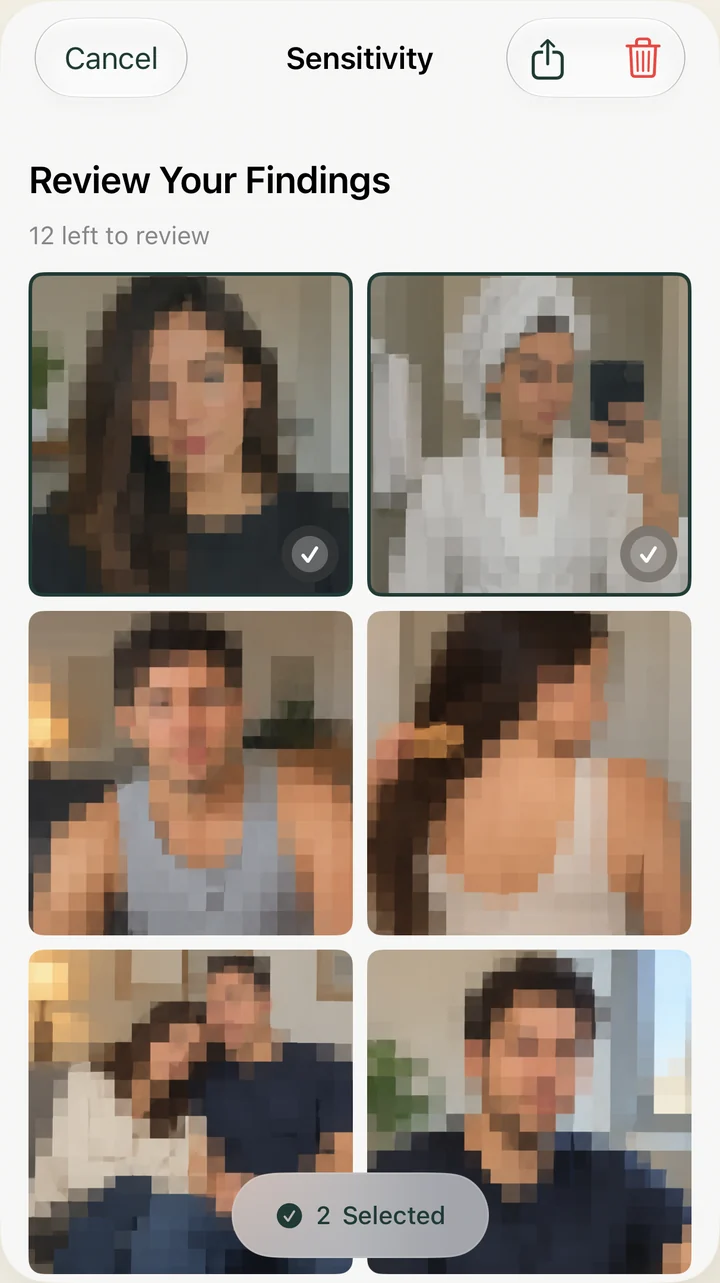
Start by reviewing dates, screenshots, downloads and imports. Sensitivity can optionally help surface likely sensitive visual content in the Photos library you allow it to access. It can miss images or flag harmless ones, so review each result yourself. Use Apple Photos for the hiding controls described above; a scan is a separate review step.