Sensitivity
Shared Mac
How to Keep Personal Photos Private on a Shared Mac
For someone who regularly uses your Mac, create a separate standard user account. For a short visit, a guest account may be enough. Closing Photos or hiding a few images does not give someone a separate workspace if you leave them inside your own account.
Start with the account, not the photo library
Consider what the other person needs: a browser for ten minutes, or a place to work every week. A regular user needs their own account, password and files. Avoid handing over your administrator login just to let someone check email.
In System Settings, open Users & Groups and add a user. Choose a standard account for ordinary use. Apple explains the account types in its user setup guide. Sign out of your account before handing the Mac over, and check that the other person reaches their own desktop.
Know the guest account’s limits
A guest account is intended for temporary use. Files created in that session are removed when the guest logs out, so it is a poor choice for work they need to keep. With FileVault enabled, Apple limits the guest session to Safari; it is not a general-purpose workspace.
Check the current options under Users & Groups → Guest User. Do not turn off disk encryption just to make a guest session more convenient. Apple’s Guest User settings describe these restrictions.
Check the copies outside Photos
A photo you exported for a document, downloaded from a conversation or saved on the Desktop may exist separately from your Photos library. Hiding the library item does not put an access restriction on that exported file.
- Review the Desktop, Downloads and folders you deliberately share.
- Check where you exported images for work, printing or messages.
- Keep personal media out of Public and shared folders.
- Open System Settings → General → Sharing and review File Sharing if it is enabled.
Check the actual folder permissions rather than assuming a folder name means it is private. Apple documents those controls in File Sharing settings.
Use a scan to help you review, not to secure the account
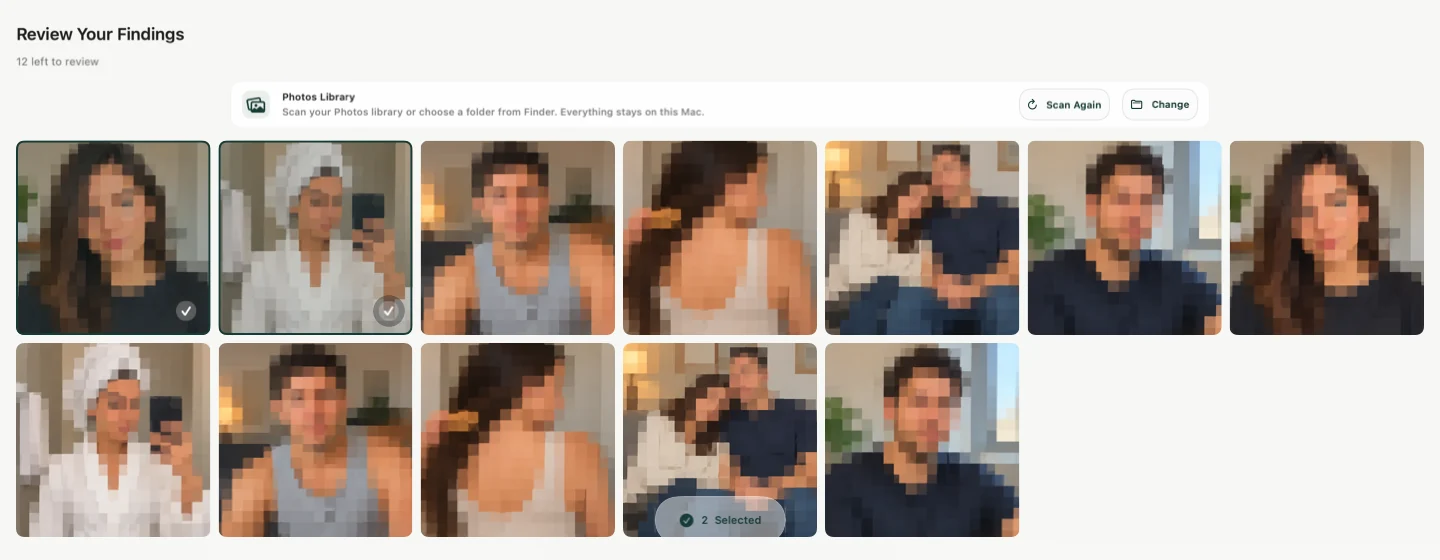
If you have a large collection, Sensitivity can help surface likely sensitive visual content in your Photos library or a Finder folder you select. Analysis stays on the Mac. Open each finding, keep false positives and choose any deletions yourself.
A scan is not a complete inventory of private information: ordinary documents, account details and images the classifier misses still need manual attention. Sensitivity does not set macOS account permissions or protect files that you have made accessible to another user.
For the scanning workflow, see our Mac library and folder guide. The screenshot below shows the app’s localized review interface with example media.
Do a short handoff check
- Preserve any photos you intend to keep before changing or deleting files.
- Check which account the other person will use and what folders you share with it.
- Close private work, then sign out of your account.
- Have the other person sign in to their own or the guest account.
- Confirm they can do the intended task without your administrator password.
For a permanent sale or transfer, follow Apple’s full backup and erasure instructions. A selective photo cleanup is only preparation; it does not erase the Mac.